Templates
Templates (/workflows/templates) is subtitled Start quickly with pre-built workflow templates. A template is a workflow you copy into your workspace as a new draft and then edit.
Two tabs
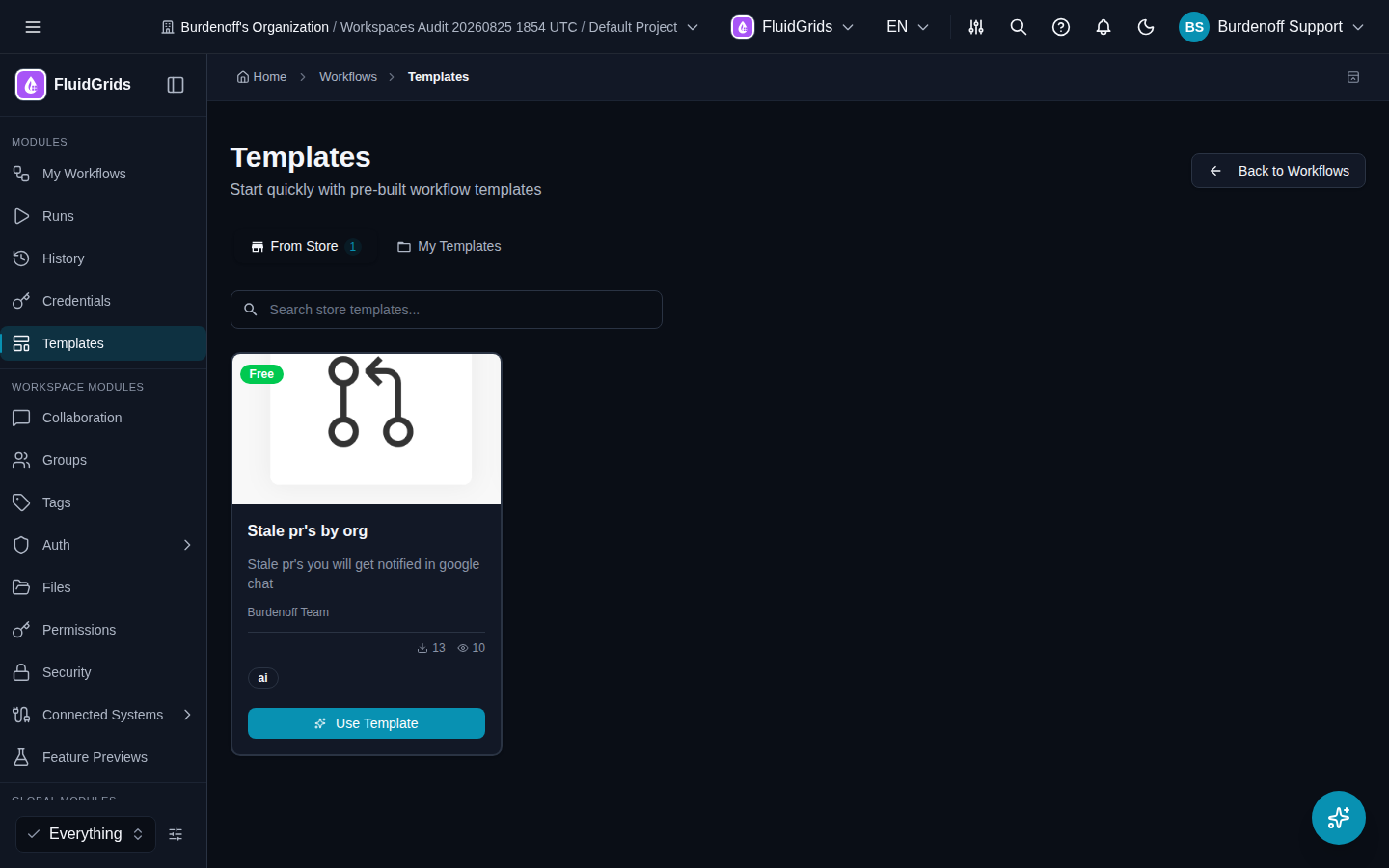
From Store (the default) lists templates published to the Burdenoff Store. Each card shows the template's name, description, publisher, category, downloads and views, and a Featured, Free, or Verified badge where applicable. Click a card to open a Template Details panel (category and tags, compatible node versions, screenshots, publisher) or a read-only Template preview of its graph.
My Templates lists the published workflows in your own workspace. Any workflow that has an Active version appears here as a reusable template.
Categories and search
The category filter offers All, Data Processing, Integration, Automation, AI/ML, and Communication. Store templates carry their own category; workspace templates are categorised from their tags, name, and description. A search box filters the current tab; Load More Templates pages through long lists.
Using a workspace template
Click Use Template on a card under My Templates. FluidGrids creates a new draft workflow from it — you will see Workflow created from template — and opens it in the builder. This counts against your workflow quota.
Importing a store template
Click Use this template on a store template. The Import dialog shows:
- Workflow Name — the name of the workflow that will be created.
- Node Dependencies — every store node the template uses, marked Installed, Will install, or Purchase required. Nodes marked Will install are installed for you as part of the import.
- Credentials Needed — the connections you will have to add after importing.
- Required Configuration — template inputs that must be set before it can run.
Click Import & Open in Builder (or Install & Open in Builder when nodes will be installed). If any node is marked Purchase required, the button changes to Purchase Required Nodes First and takes you to the Store; the import is blocked until the purchase is complete.
Imported workflows keep a lineage link back to the store template they came from.
Templates inside the builder
The Templates toolbar button opens the same gallery as a dialog so you can start from a template without leaving the canvas.
Publishing your own template to the Store
Making your workflow available to other workspaces through the Store goes through the Developer Portal › Applications submission and review flow. A self-serve Save as template button does not exist yet.
Next steps
- Visual Builder
- Credentials — adding the connections a template needs